Notes like chats with yourself, on iPhone, iPad and Mac
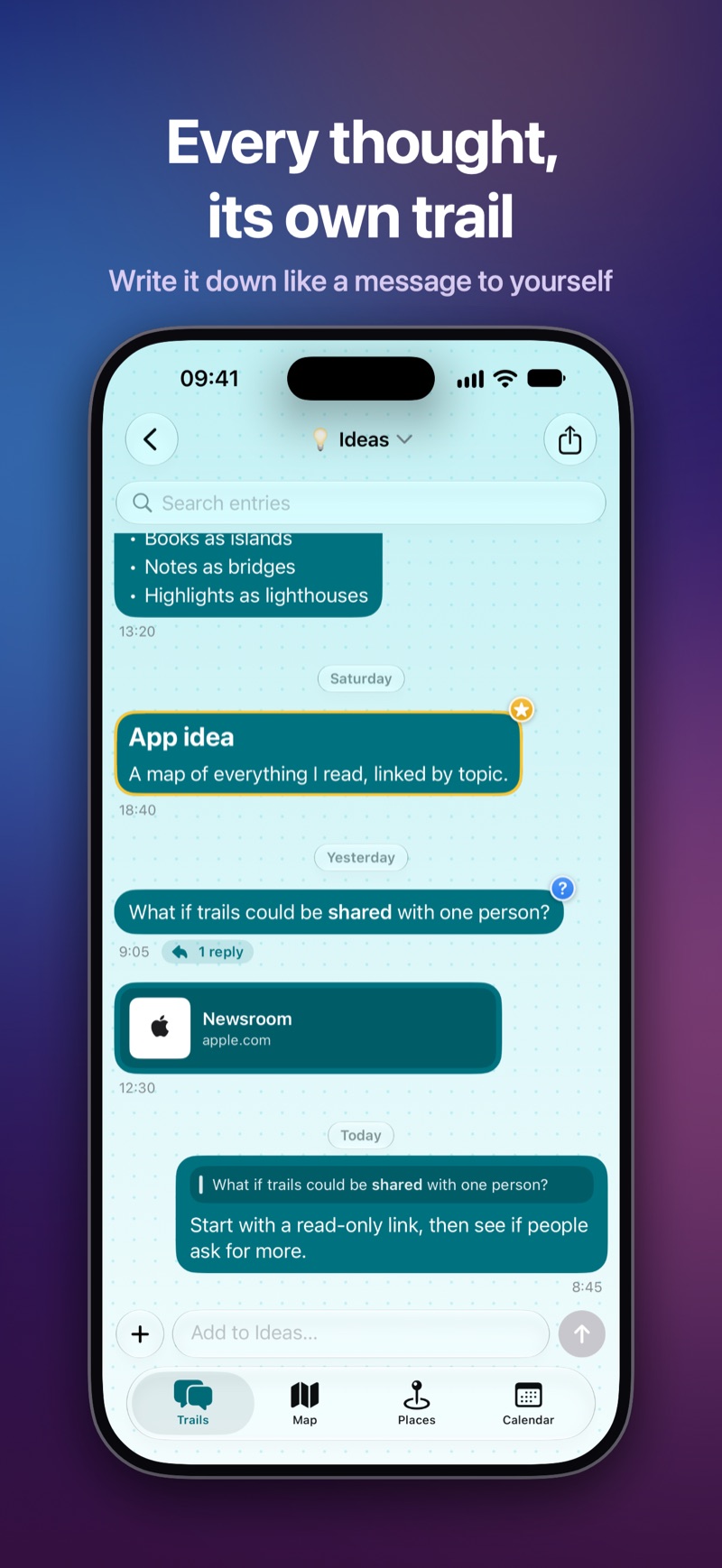
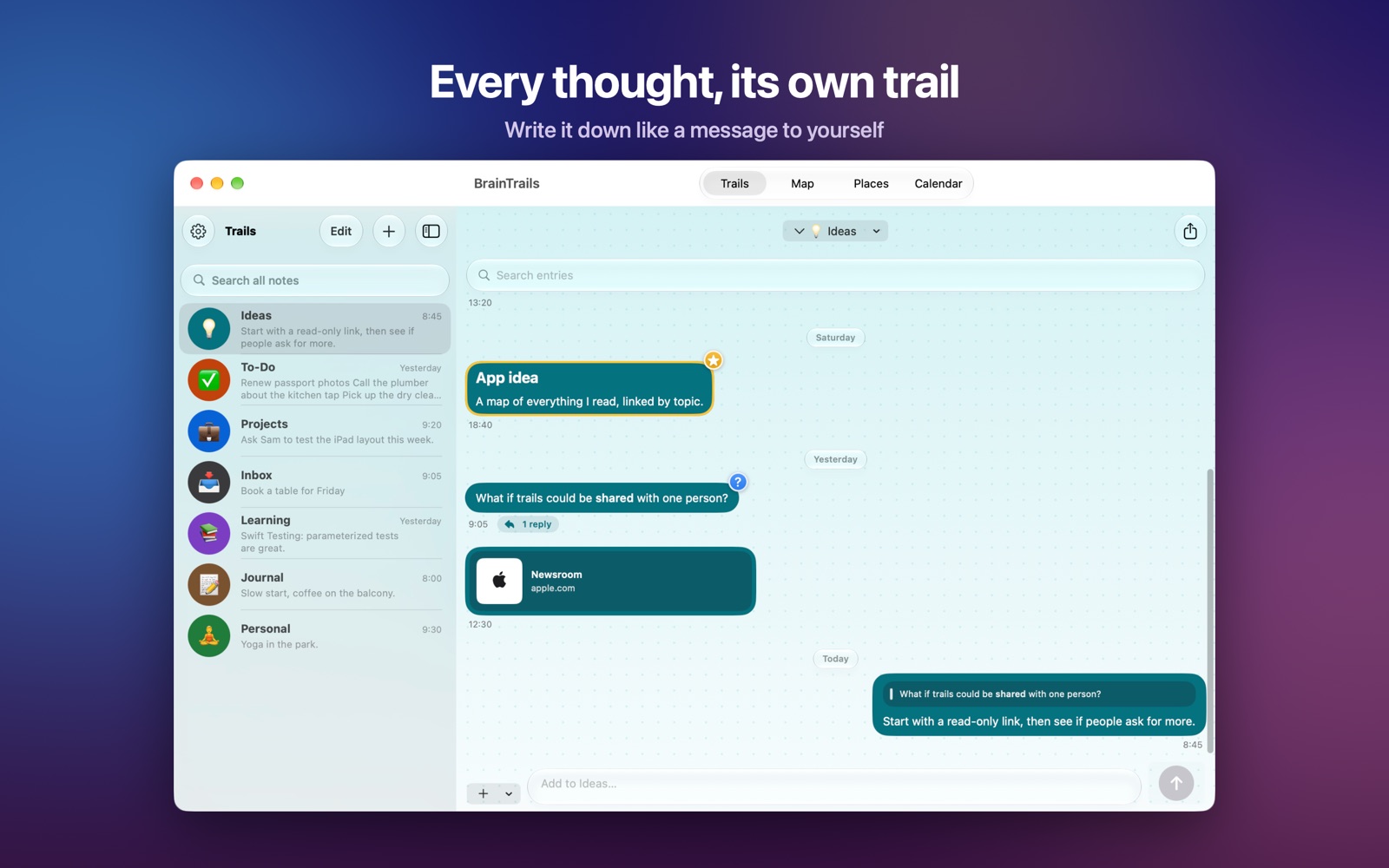
BrainTrails is the fastest place to put a thought. Each trail is like a chat with yourself: write a note, send it, and it’s there with its time, its place and everything you wrote before.
Keep things apart #
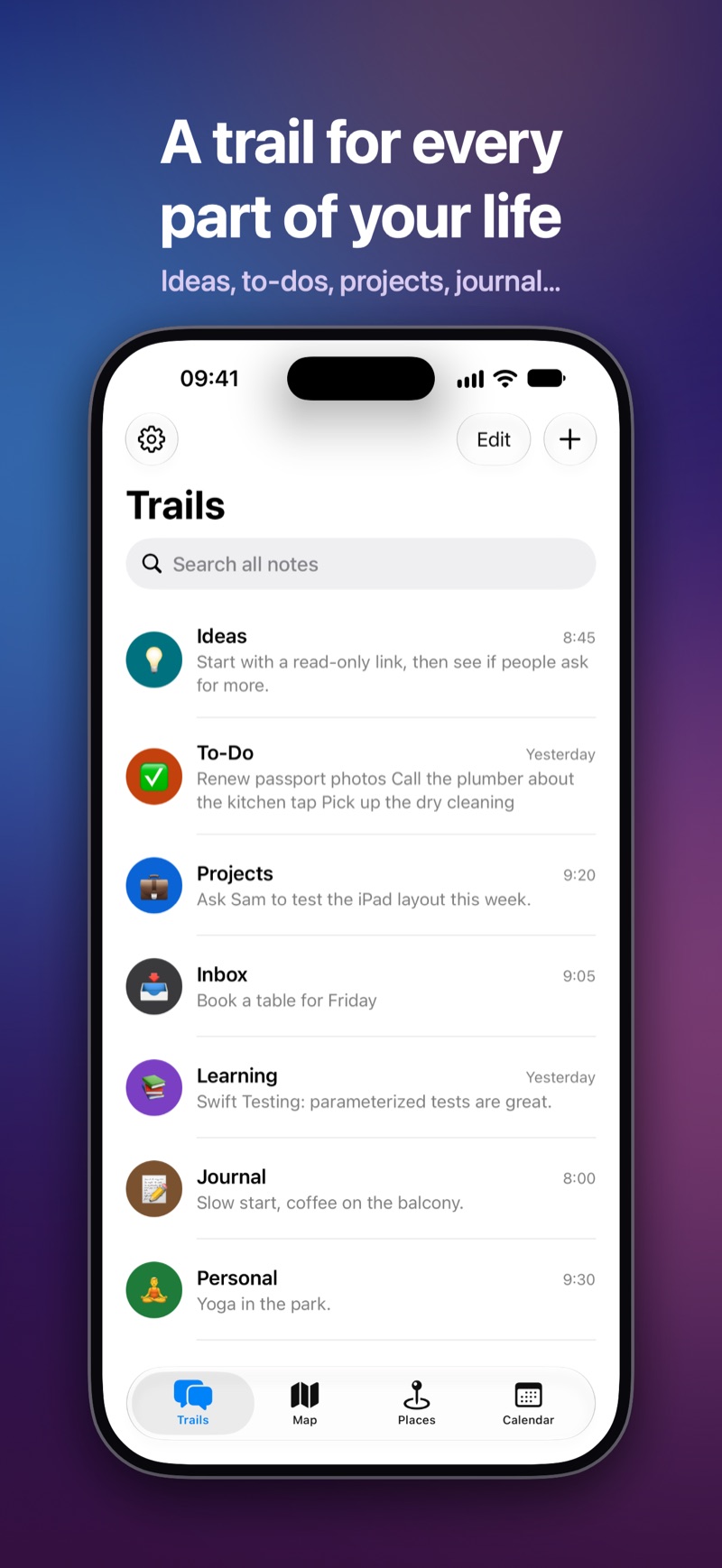
Start with Ideas, To-Do, Projects, Inbox, Learning, Journal and Personal, or make your own trails with their own color and texture. Each one shows its latest note in the list.
Write the way you think #
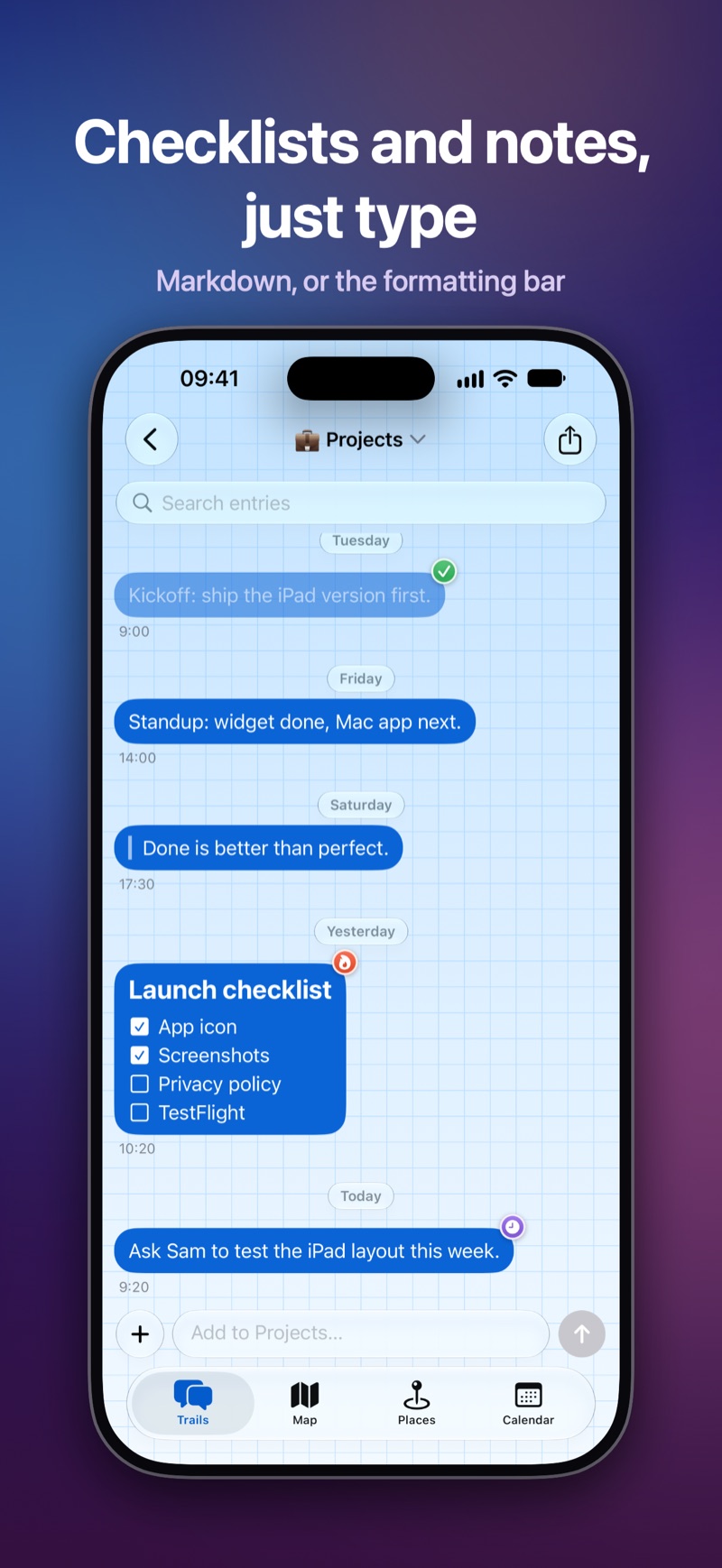
- Markdown, or the formatting bar: headings, lists, checklists, quotes, code and links
- Tick off checkboxes right in the note
- Reply to a note to keep a thought going
- Tag notes with stickers: done, important, urgent, idea, question, later
- Photos, drawings, and links with a preview of the page
Find anything #
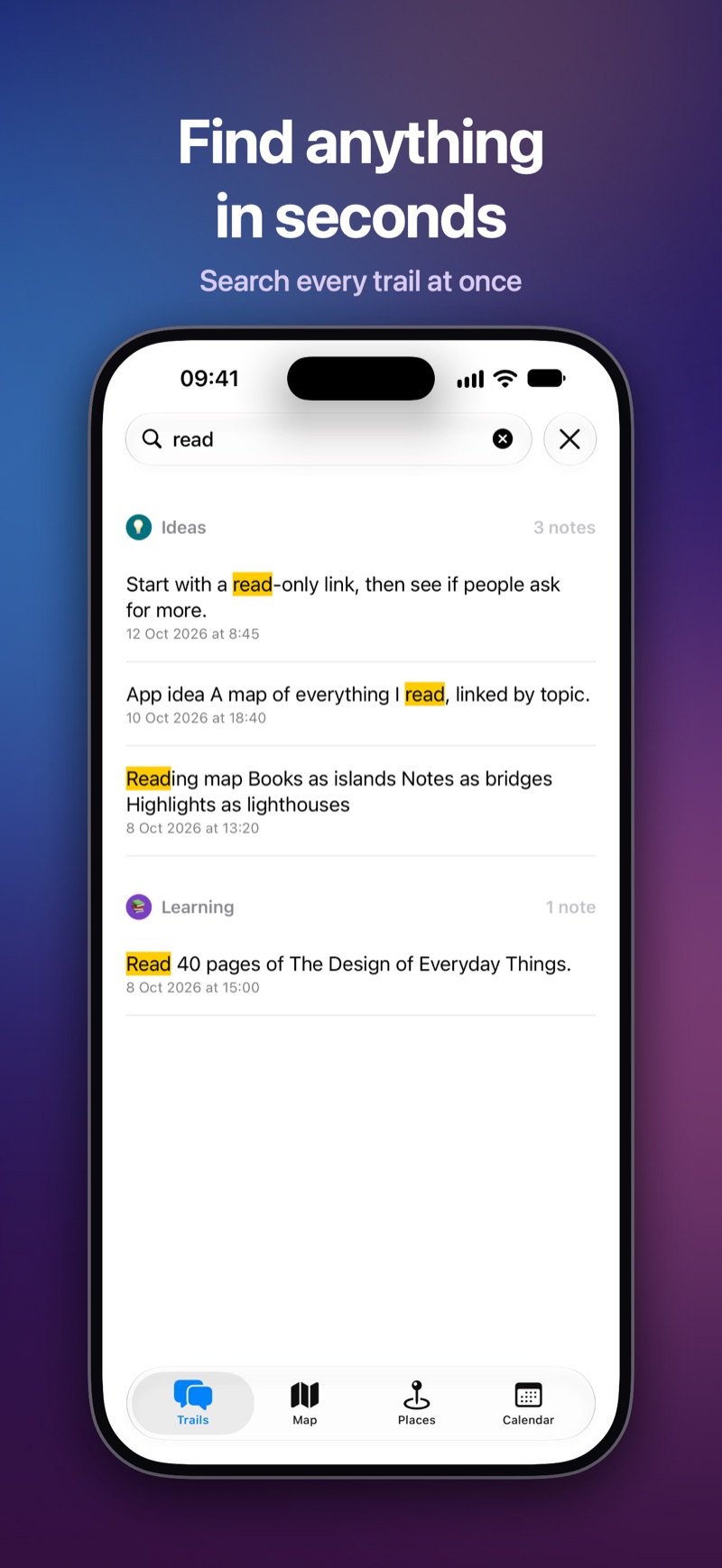
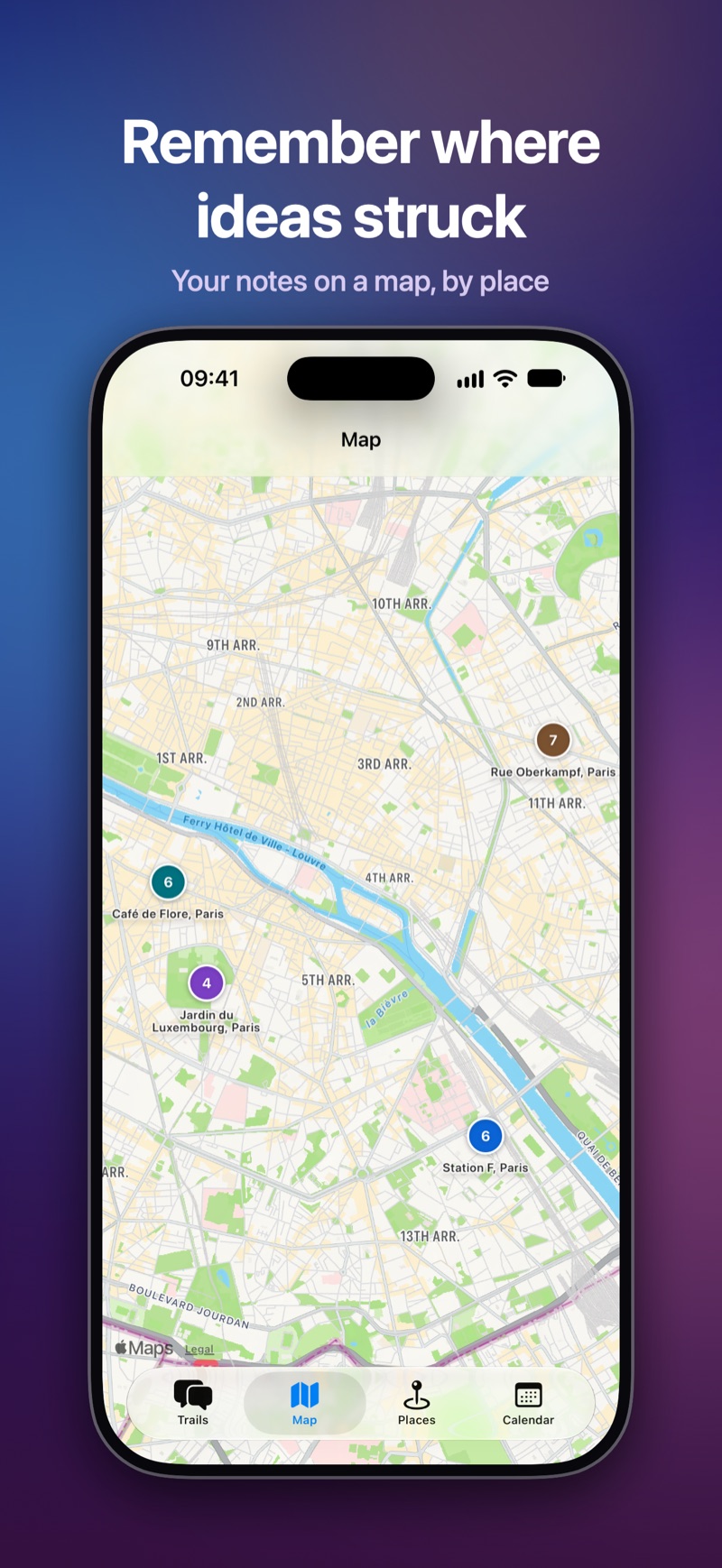
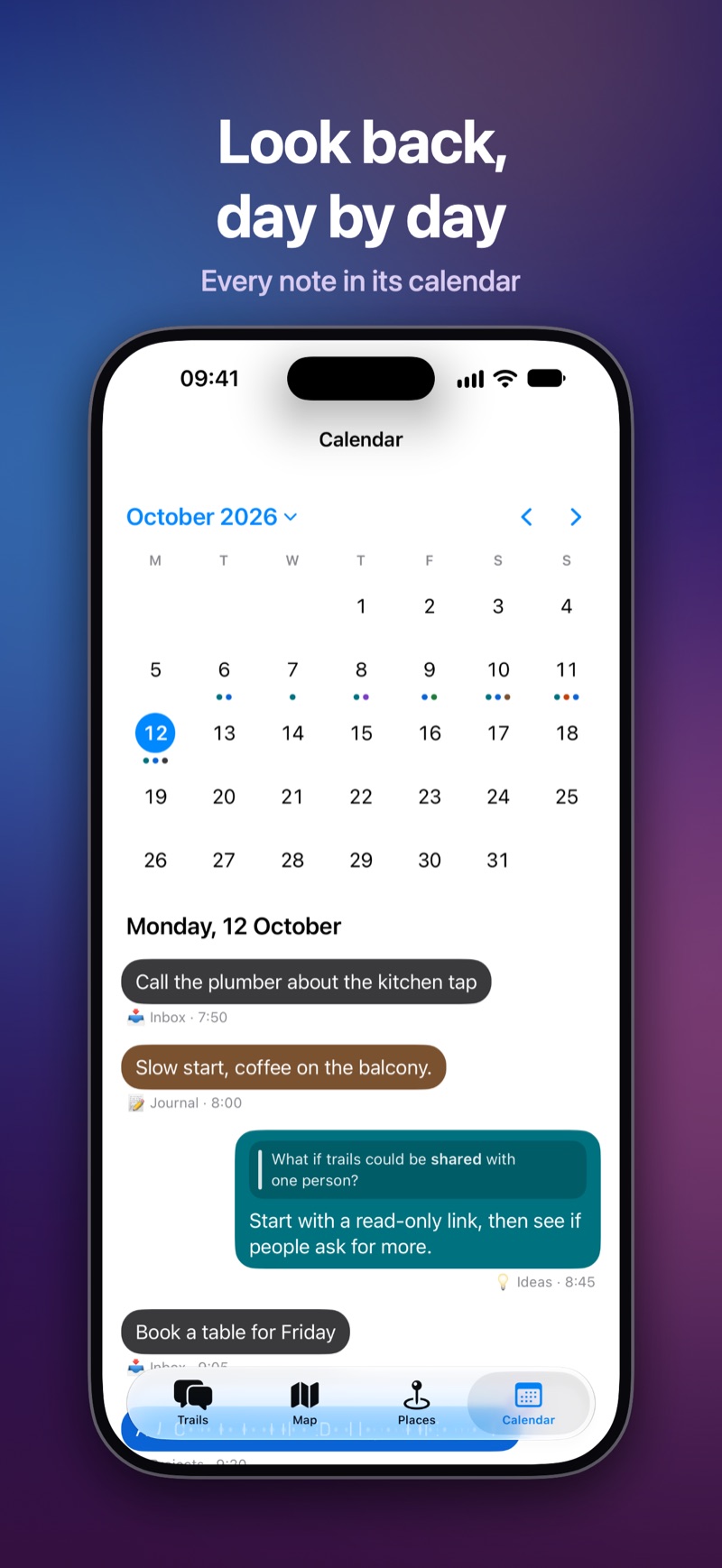
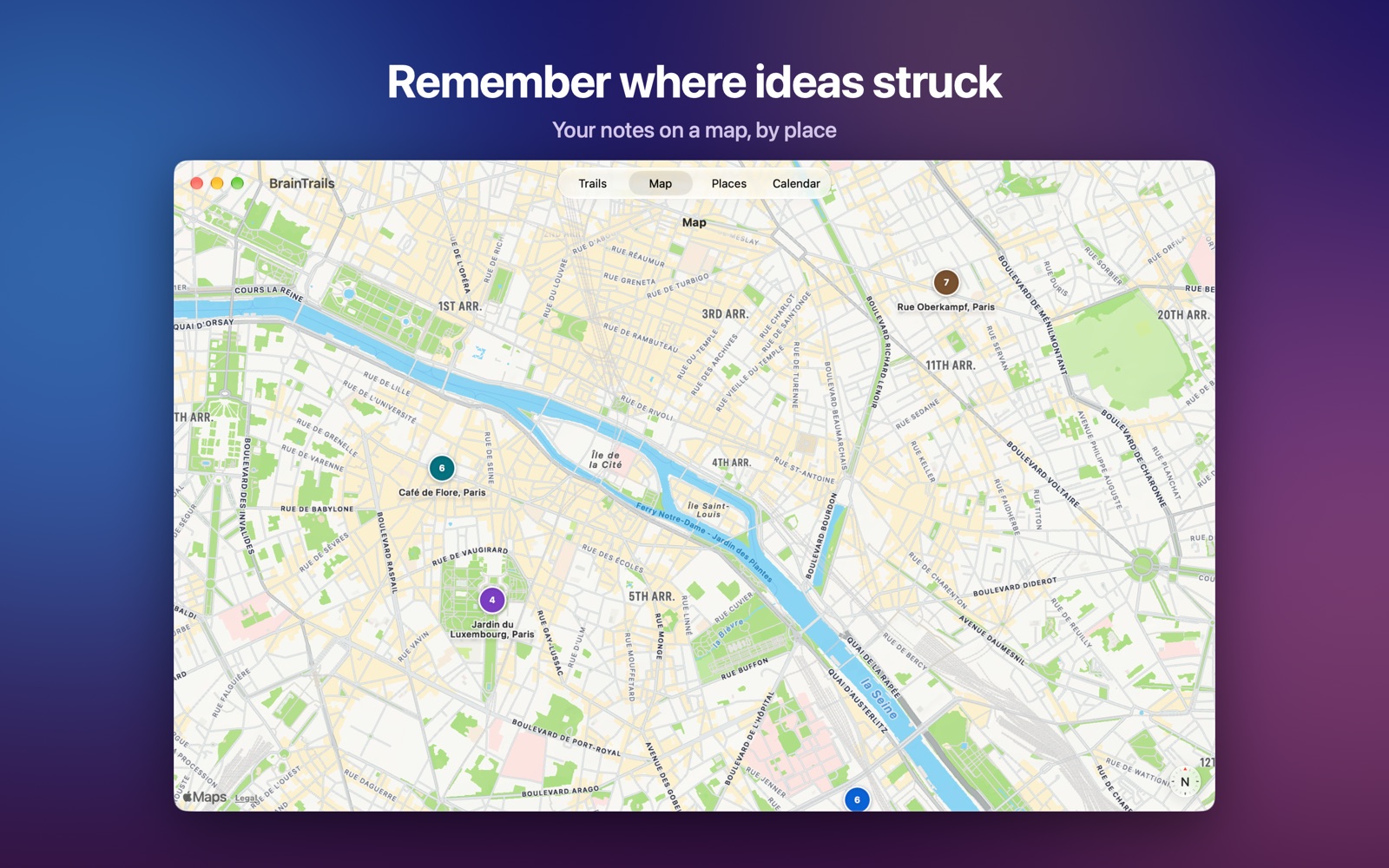
Search every trail at once, or step through matches in one. Browse notes on a map, by place, or day by day in the calendar.
Capture from anywhere #
On iPhone and iPad: a Home Screen widget with a trail’s latest notes, a Control Center, Lock Screen and Action button control to start a note, “Add a note in BrainTrails” with Siri, and sharing from other apps. On Mac: keyboard shortcuts and menus for everything.
Yours #
Notes sync through your own private iCloud: nobody else can read them, not even us. Export a trail or everything as PDF or Markdown with photos. Locations are optional. No account, no ads, no tracking.
Screenshots #
Support #
My notes don’t appear on my other devices #
Notes sync through iCloud. Check that each device is signed in to the same Apple Account and that BrainTrails is turned on in the Settings app, under your name › iCloud › Apps Using iCloud. In BrainTrails, Settings › iCloud shows whether it’s syncing, and the last error if a sync didn’t finish. New notes can take a minute to reach your other devices.
Can I use BrainTrails without iCloud? #
Yes. Without iCloud, your notes are kept on the device only. They start syncing once you sign in to iCloud.
How do I back up or move my notes? #
Settings › Export saves every trail as one PDF, or as Markdown files with their photos, for a backup or another notes app. To export a single trail, use its menu in the trail list.
Does BrainTrails need my location? #
No. Saving where a note was written is optional, and only used for the Map and Places views. You can turn it off at any time with Settings › Notes › Save location with new notes.
How do I delete all my notes? #
Settings › Storage › Delete All Data… deletes every note, photo and named place, and the trails you added, from all your devices and iCloud. Your starting trails stay, empty. Export a copy first if you might need them.
Privacy #
BrainTrails doesn’t collect any data. Read the privacy policy.
Contact us #
Something not working, or an idea for BrainTrails? We read every message.
Email support@imaginatr.comPlease mention your device and its system version (for example iPhone 16, iOS 26), and what you were doing when it happened.