 QR for WiFi
Your Wi-Fi, one scan away.
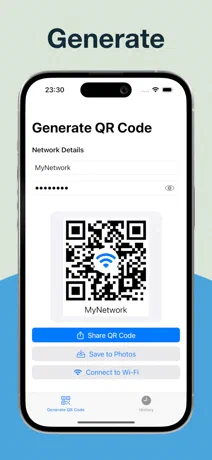
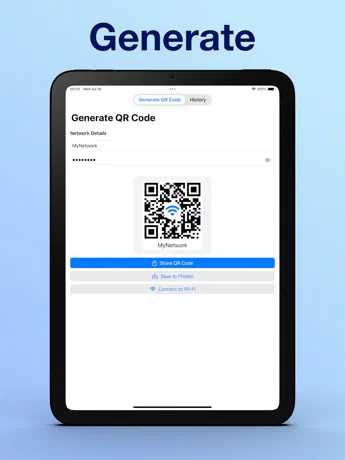
Type your network name and password, and a QR code appears as you type. Guests point their camera at it and join, no typing needed. Share it, save it to Photos to print, or connect to the network yourself in a tap.
iPhone · iPad
 Scan with your iPhone to download.
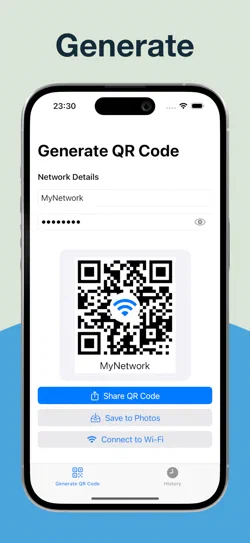
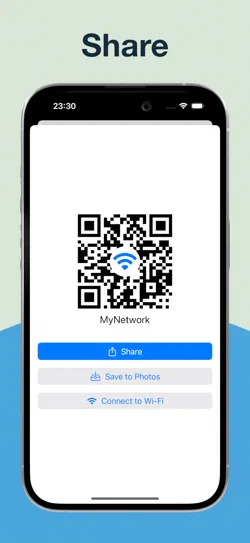
A QR code as you type
Enter the network name and password, and the code updates with every letter. Hidden networks work too.
Share it or print it
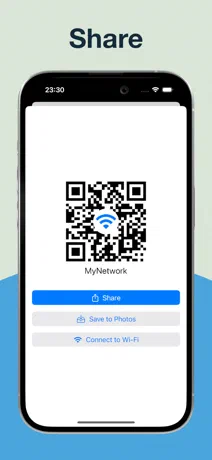
Send the code with AirDrop, Messages or Mail, or save it to Photos to print and put on the fridge or the café counter.
Connect in a tap
Join the network on your own iPhone or iPad straight from the app, without copying the password.
Your networks, kept
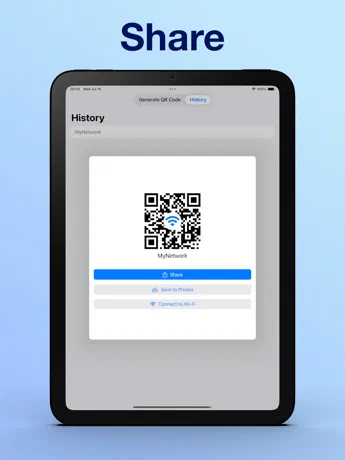
Every network you make a code for is saved in History, ready to share again next time.
Private and offline
No account and no internet needed. Your networks and passwords stay on your device.
Nothing in the way
No ads, no tracking and no subscription. Just the code.
Screenshots
Questions
How do my guests use the code?
They open the Camera on their phone and point it at the code, then tap the Wi-Fi notice that appears to join. On iPhone and iPad it’s built in, and most Android phones do the same.
Which networks does it work with?
Networks with a password, the kind most homes, offices and cafés use (WPA, WPA2 and WPA3 Personal). If your network doesn’t broadcast its name, turn on the hidden network option.
Where are my saved networks?
In the History tab. They’re kept on your device only, never sent anywhere.
What does Connect to Wi-Fi do?
It asks iOS to join the network on the device you’re using, so you don’t have to type the password in Settings › Wi-Fi. iOS asks you to confirm first.
Something else? Email support@imaginatr.com · Privacy policy


